
Template syntax
A template is the command string with placeholders for the parts you fill in. The syntax is deliberately tiny — three tokens — so there's no bespoke grammar to learn.
Tokens
| Token | Meaning |
|---|---|
<var> |
A required placeholder, prompted in the form. |
[ ... <var> ... ] |
An optional segment — if you skip the variable, the entire bracketed fragment is removed. |
\< \> \[ \] \\ |
Escaped literals — a real <, >, [, ], or \. |
Required placeholders
<var> marks a value you must provide. The form prompts for it, and you can't
finish until it's filled:
The name inside the angle brackets links the placeholder to its [[cmd.var]]
block (name = "branch").
Optional segments
This is Commando's signature move. Wrap a fragment and its variable in
[...]. If you skip the variable, the whole fragment — flag and all —
disappears:
| You do | Result |
|---|---|
author = skip, count = 20, file = README.md |
git log -n 20 -- README.md |
author = alice, count = skip, file = a.go b.go |
git log --author=alice -- a.go b.go |
author + count skipped, file = x |
git log -- x |
Because the --author= text lives inside the bracket with its variable,
skipping the variable removes the flag too. The dangling-flag problem simply
doesn't exist.
Here it is in action — skipping an optional [--exclude=…] segment and
multi-selecting the required files, with the command preview assembling as you go:
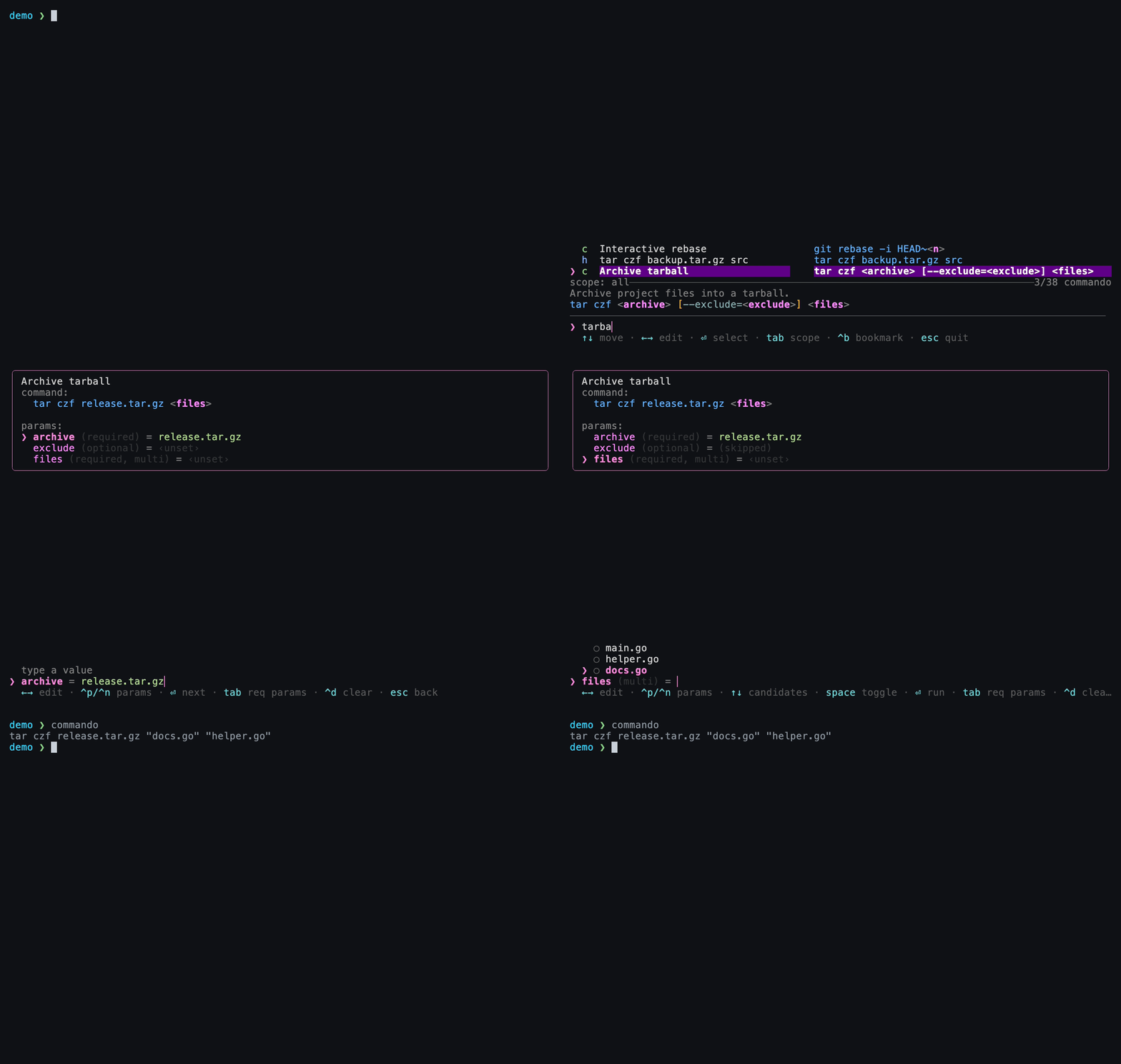
The optional [--exclude=…] is skipped (it vanishes from the command), while two files are multi-selected and quoted.
Optionality lives on the fragment, not the variable
A variable becomes optional by being inside [...]. The same variable
outside brackets would be required. You can have multiple optional segments,
and they can be nested.
Shell syntax is kept verbatim
Most shell syntax that resembles a token is left alone, so you rarely need to escape anything:
<starts a placeholder only when a name character (letter, digit,_,-,.) directly follows it and a>closes the name.sort < f,<<EOF,<<<word,<(cmd), and2<&1are literal.[...]is an optional segment only when it contains a variable.grep '[0-9]+'and an unclosed[are literal, and[[ ... ]]is always literal, so[[ -f <f> ]]is a shell test with a required<f>.- A backslash escapes only
<,>,[,], and\. Any other backslash, such as\t,\*.go, or a line continuation, is kept as written. - Whitespace in the template is preserved, including newlines and spaces inside quotes. The only whitespace removed is the doubled gap a skipped optional segment leaves behind.
Something that starts like a placeholder but is malformed is an error, so a
typo is reported instead of being placed on your prompt: <bad name> (a space
in the name) and an unterminated <file both fail to parse.
Escaping literals
When you do need a literal token, for example <name> written out or a
bracketed fragment that contains a variable, escape it with a backslash:
# A literal "<id>" and a literal bracket around a variable:
tmpl = "echo \<id\> <value>"
tmpl = "grep '\[<level>\]' <file>"
| Escape | Produces |
|---|---|
\< |
< |
\> |
> |
\[ |
[ |
\] |
] |
\\ |
\ |
How resolution works
At fill-in time, Commando walks the template left to right:
- For each segment, determine the variable's value (candidate, default, typed, or remembered).
- If a segment is optional and the variable is skipped, omit the whole segment.
- Otherwise substitute the value in place.
- Multi-select values are formatted with
eachand joined withsepbefore substitution (see Variables).
The command preview shows this assembling in real time as you fill the form.
Next
-
Give each placeholder candidates, defaults, multi-select, and more.
-
How Commando remembers and ranks the values you enter.